Sign Document
Click on the Digital Signed Documents section in the left navigation bar to access the list of digitally signed documents.
Create new Sign Document
Click on "Create" to start initiating a new electronic signing document.
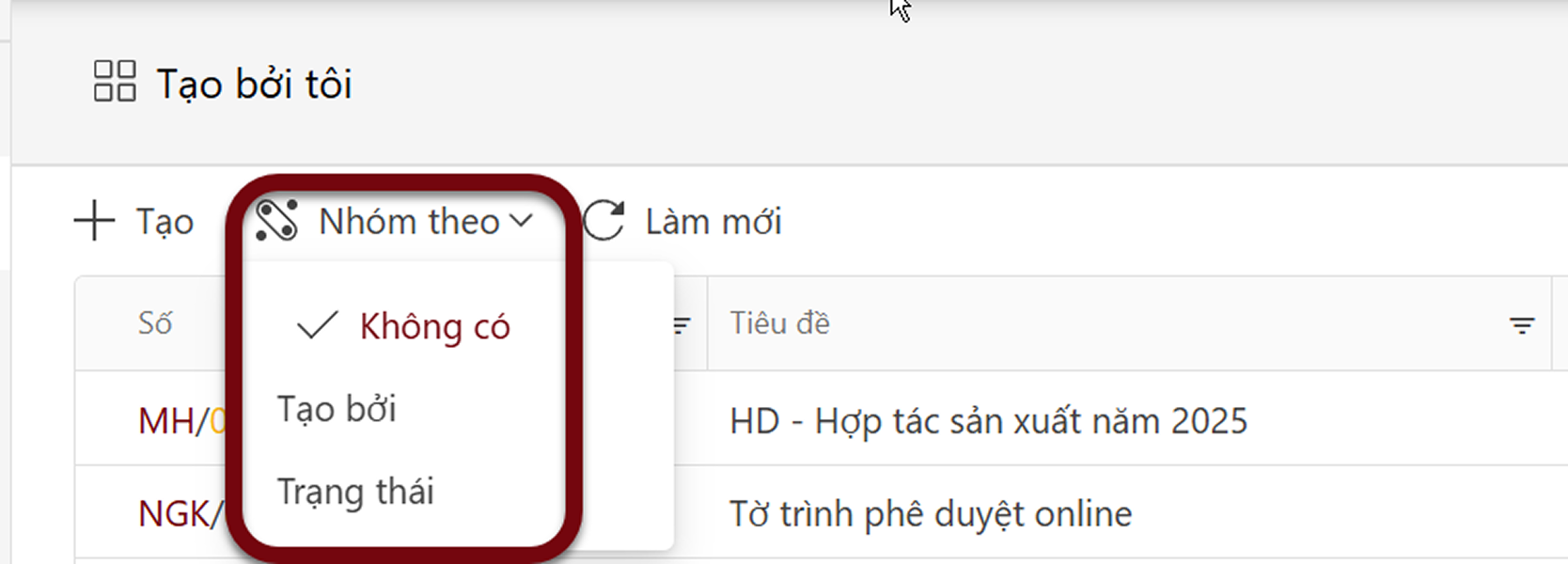
Group by
Group by is a feature that allows users to organize documents into groups based on the Creator or Status.
Refresh
Allows users to reload the current list.
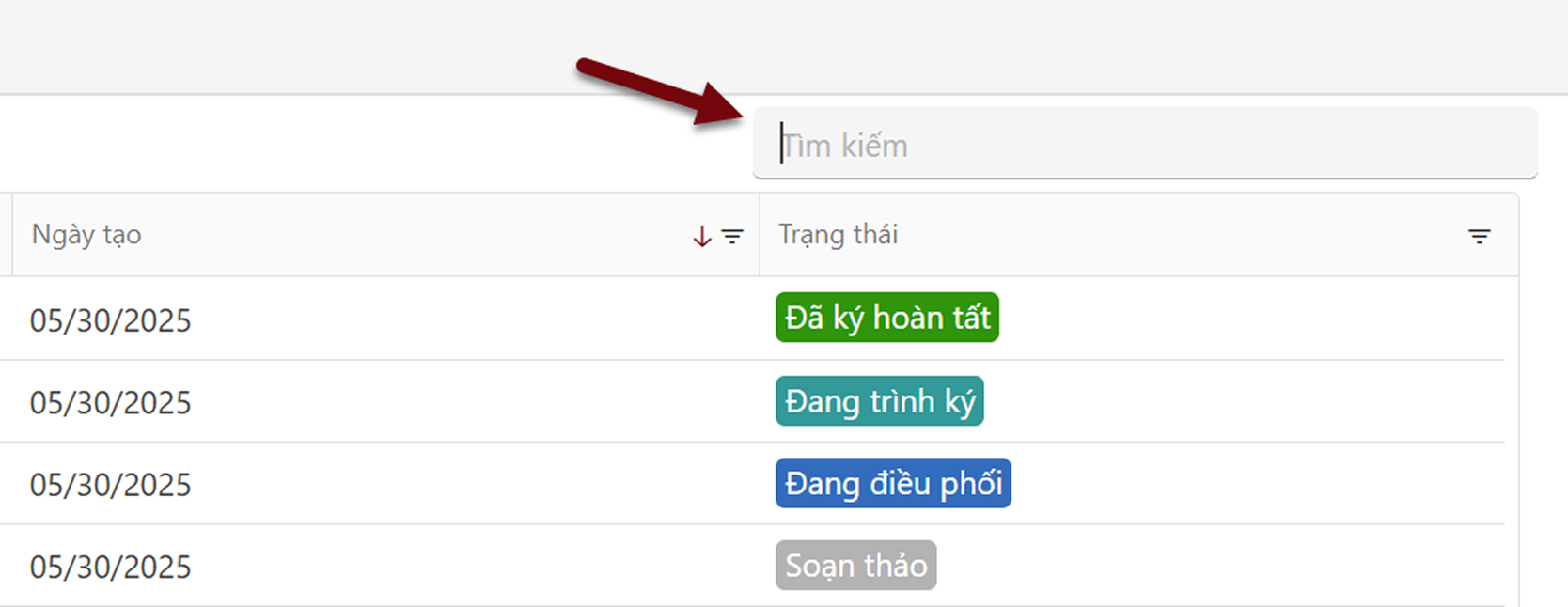
Search
Allows users quickly search for documents by entering keywords such as Reference Code (Ref) or Title.
Select a view and Create new view
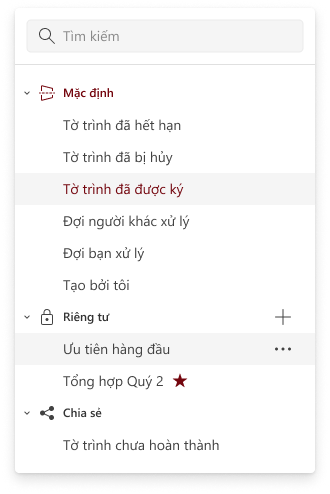
Select a view Click the icon to select the display mode according to each View. The system defaults to showing the following Views:
- Cancelled documents
- Signed documents
- Waiting for others to process
- Waiting for you to process
- Created by me
Create new view Users can quickly create a View based on specific conditions to easily track relevant lists. Click the (+) icon to create a new View.
The system will navigate to the View creation screen as shown below:
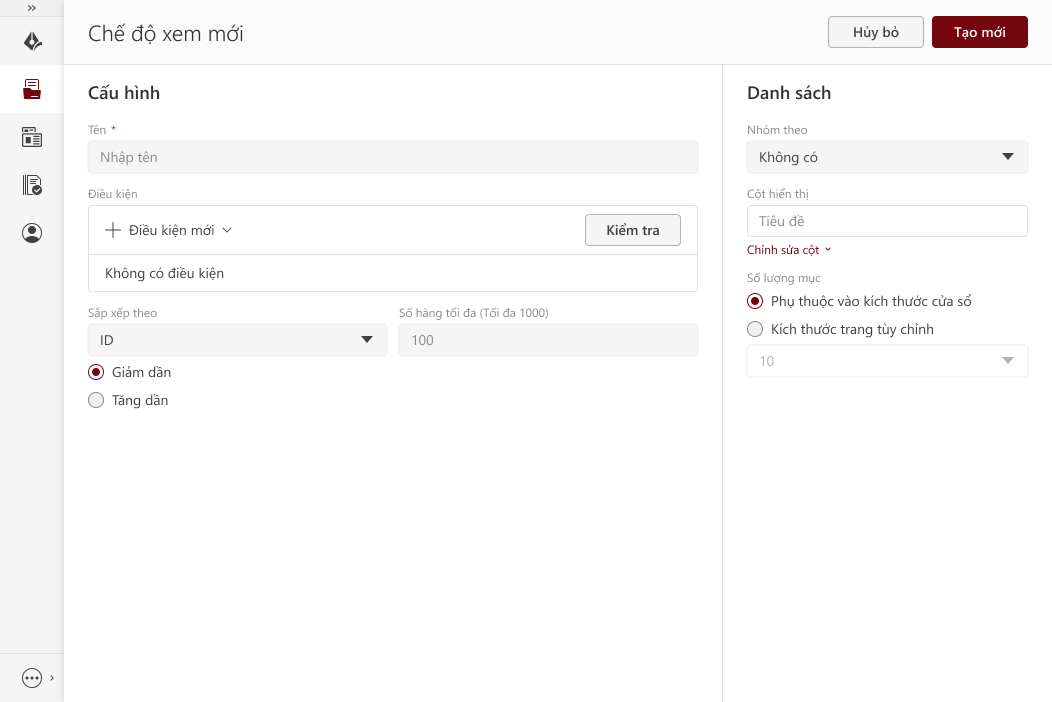
Configuration
- Name: Enter the display name for the View.
- Condition: Select filtering conditions, including three types: Creation Date, Created By, Status.
- Check: Click Check to preview the list of documents based on the selected conditions.
- Sort: Choose to sort by Creation Date or Title.
- Quantity (maximum 1000): The default is 100. Users can enter the desired number of items to display.
Column list:
- Group: Default is None. Users can choose to group by Created By or Status.
- Displayed Columns: Click Edit Columns to select which information columns to display.
- Display Quantity: There are two modes: Based on screen size or Custom display quantity.


