eBot
Overview
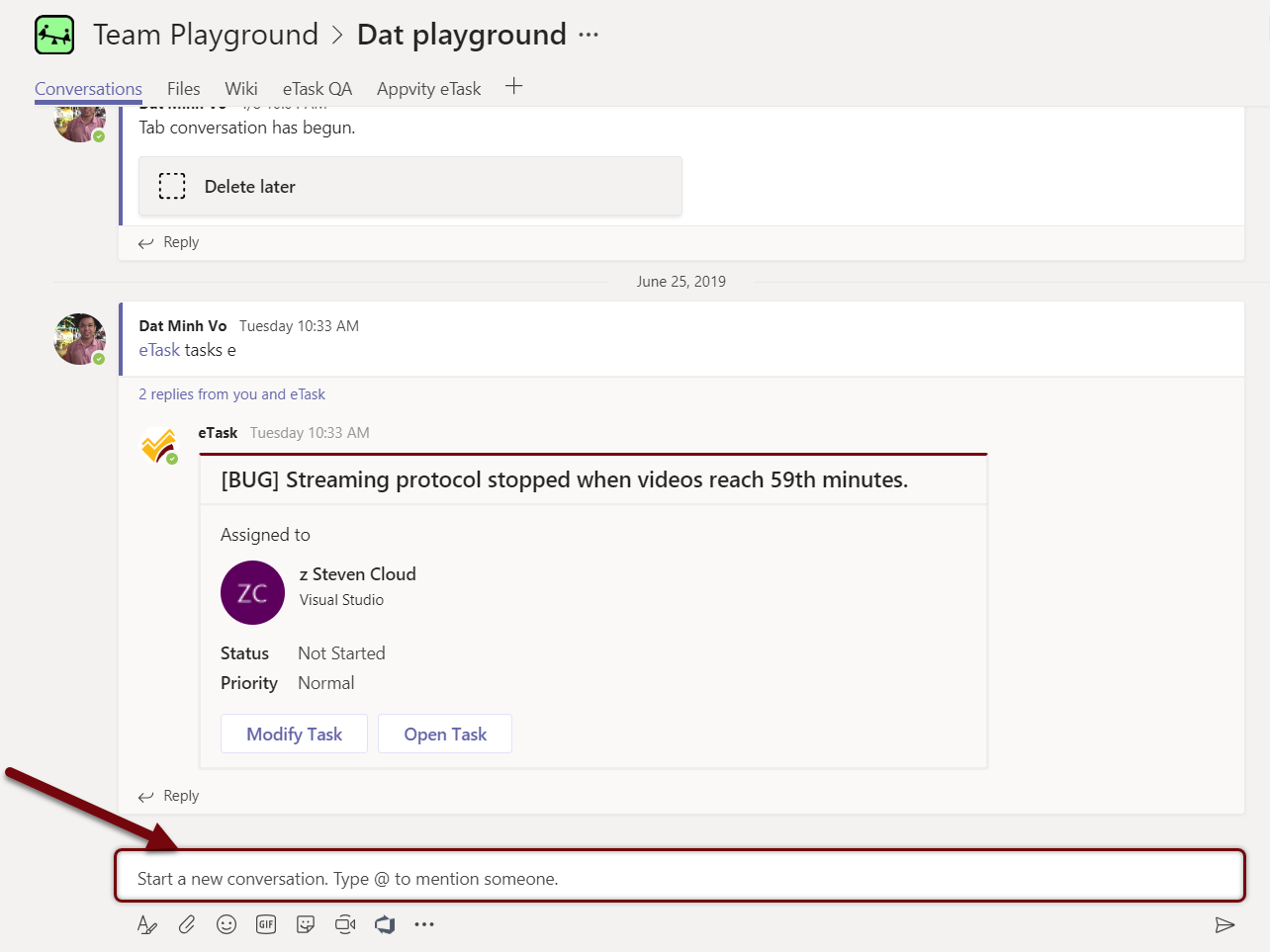
eBot is an intelligent bot for interacting with eTask and eBug through conversations, which provides an easy way to view, edit, or open a task in the Posts tab.
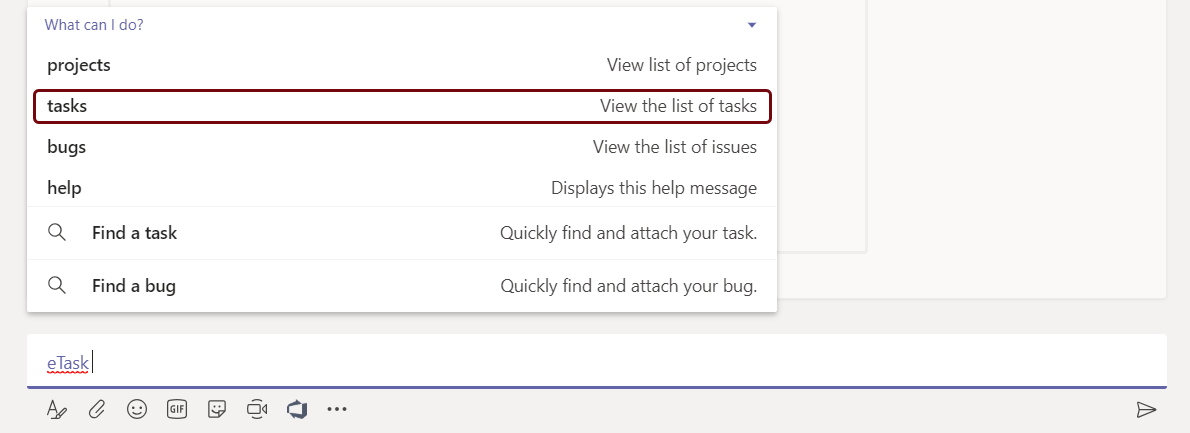
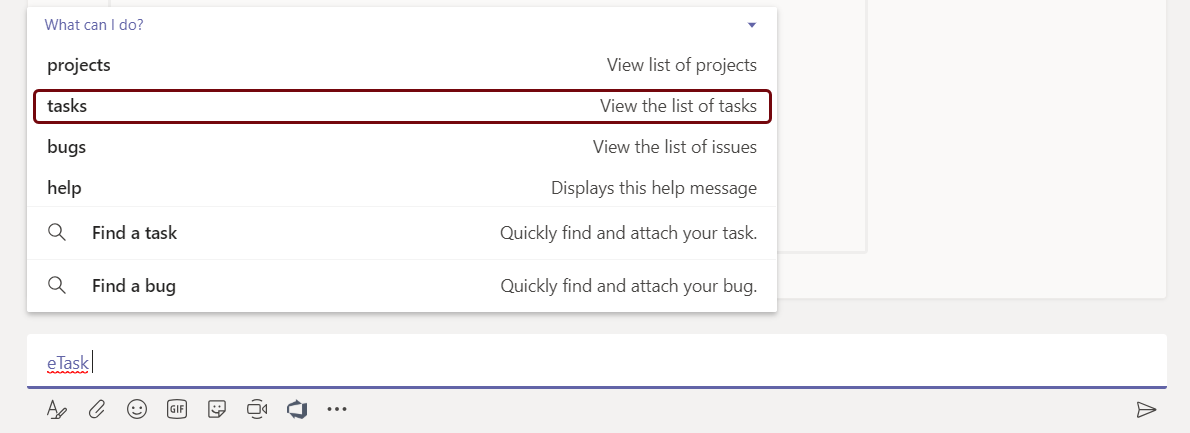
From the Posts tab, type “\@eTask”, and then choose eTask.
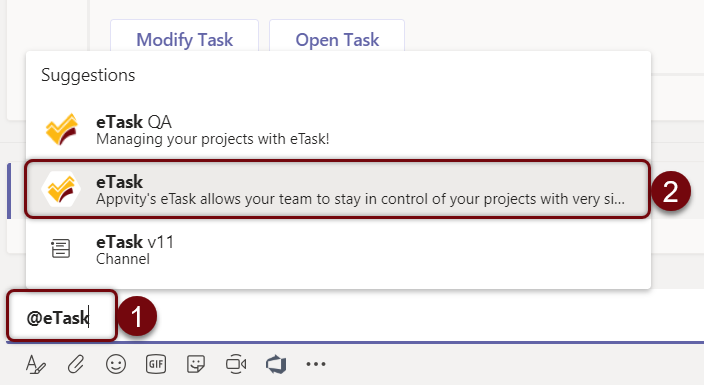
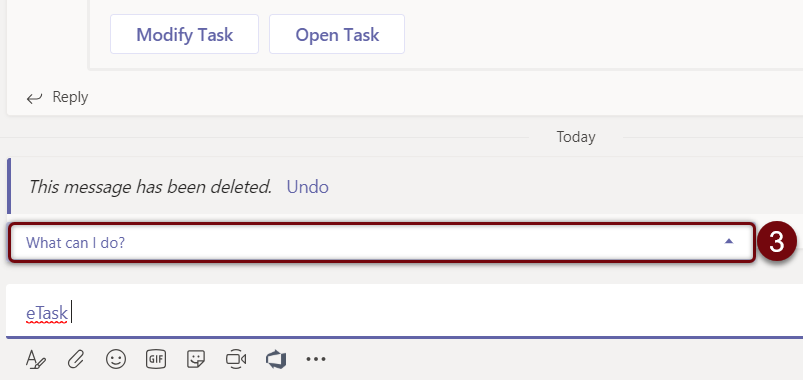
Choose “What can I do?”
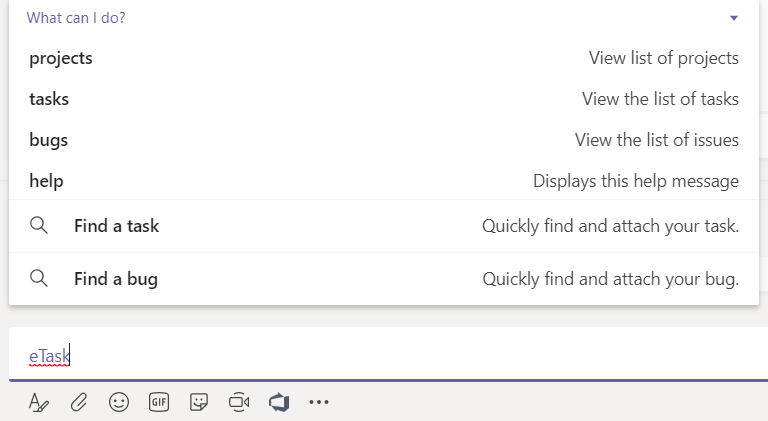
Find a task
On the Posts tab, type “\@eTask” and choose eTask, and then click on “Find a Task”.
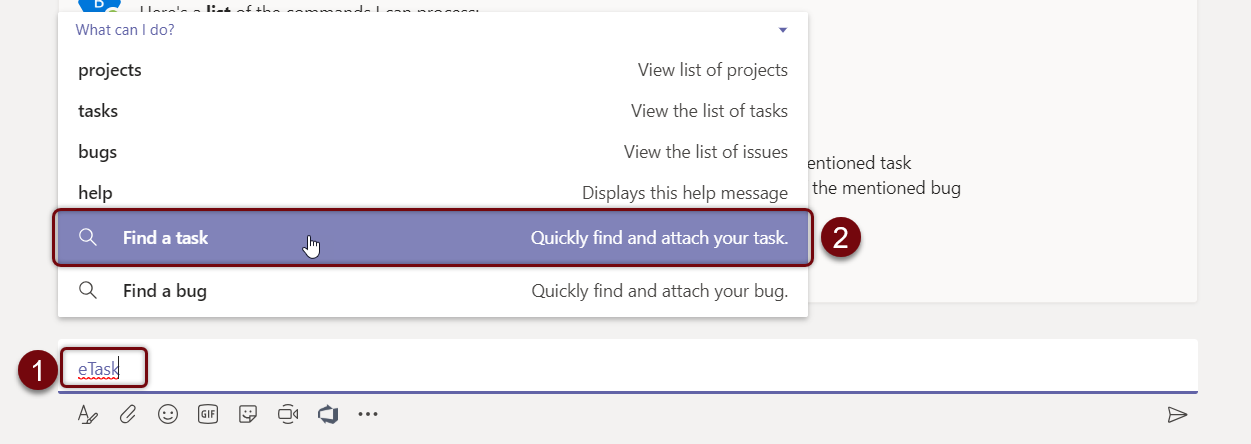
Use a keyword to find a task.
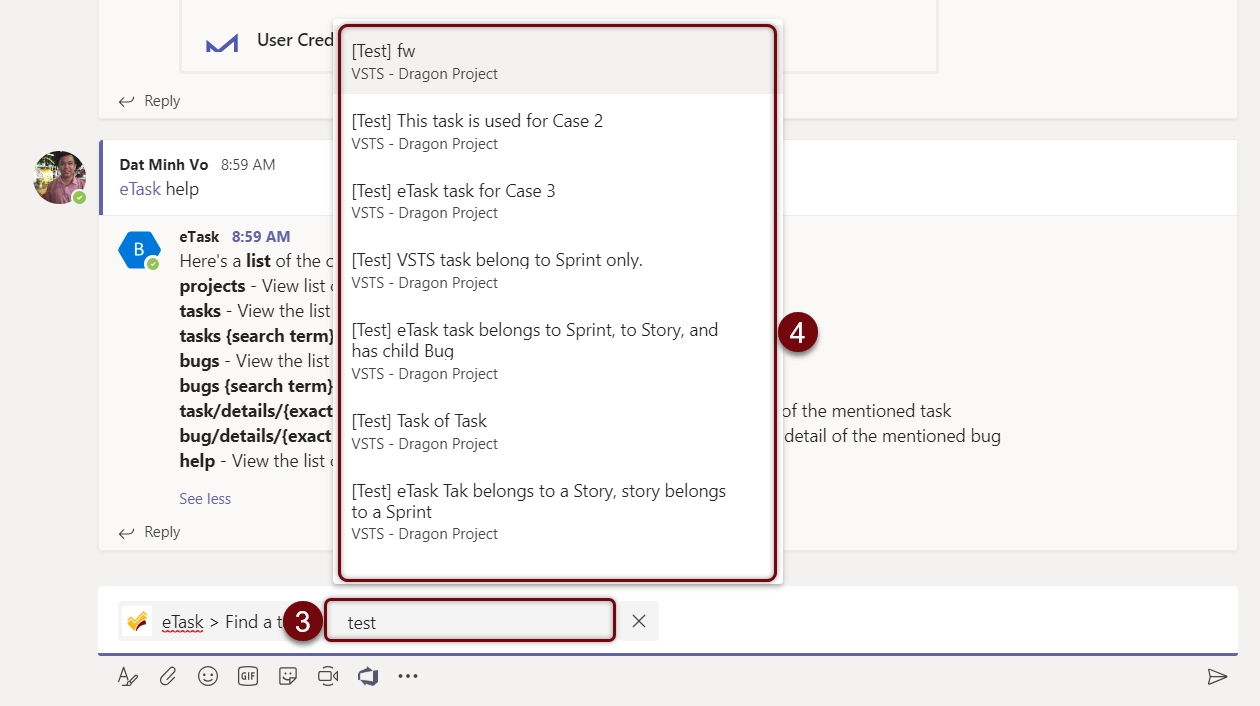
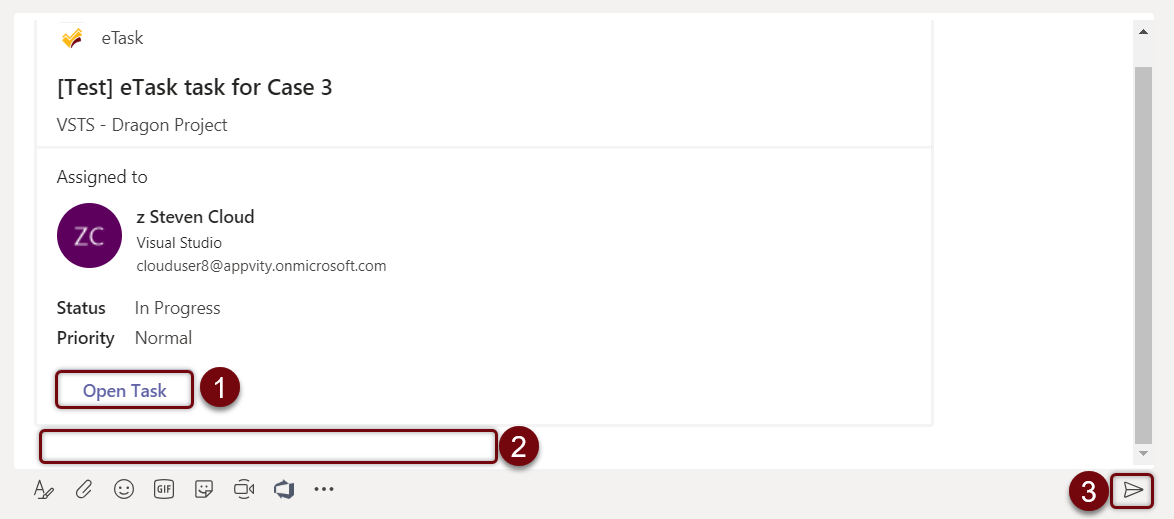
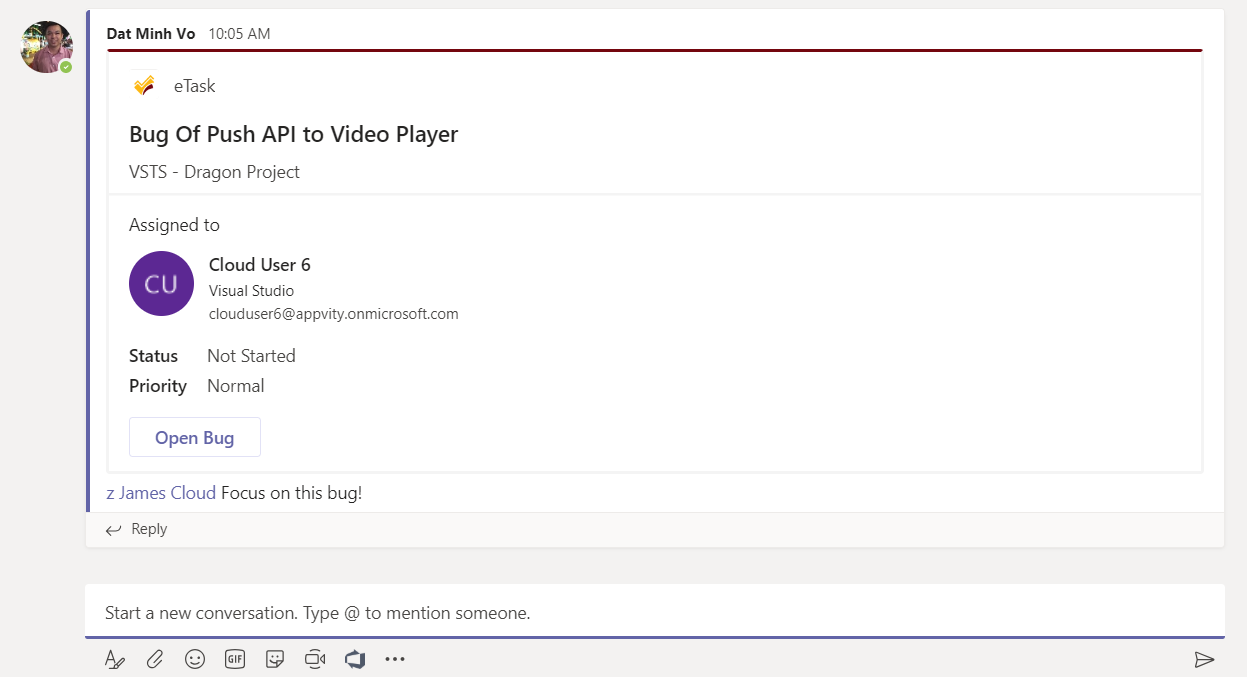
Task will be embedded onto Posts tab.
-
Open Task: Microsoft Teams will be directed to that task in eTask tab.
-
Attached message (Optional): Write a comment or tag someone to improve concentration.
-
Send: Send the whole message onto Posts tab.
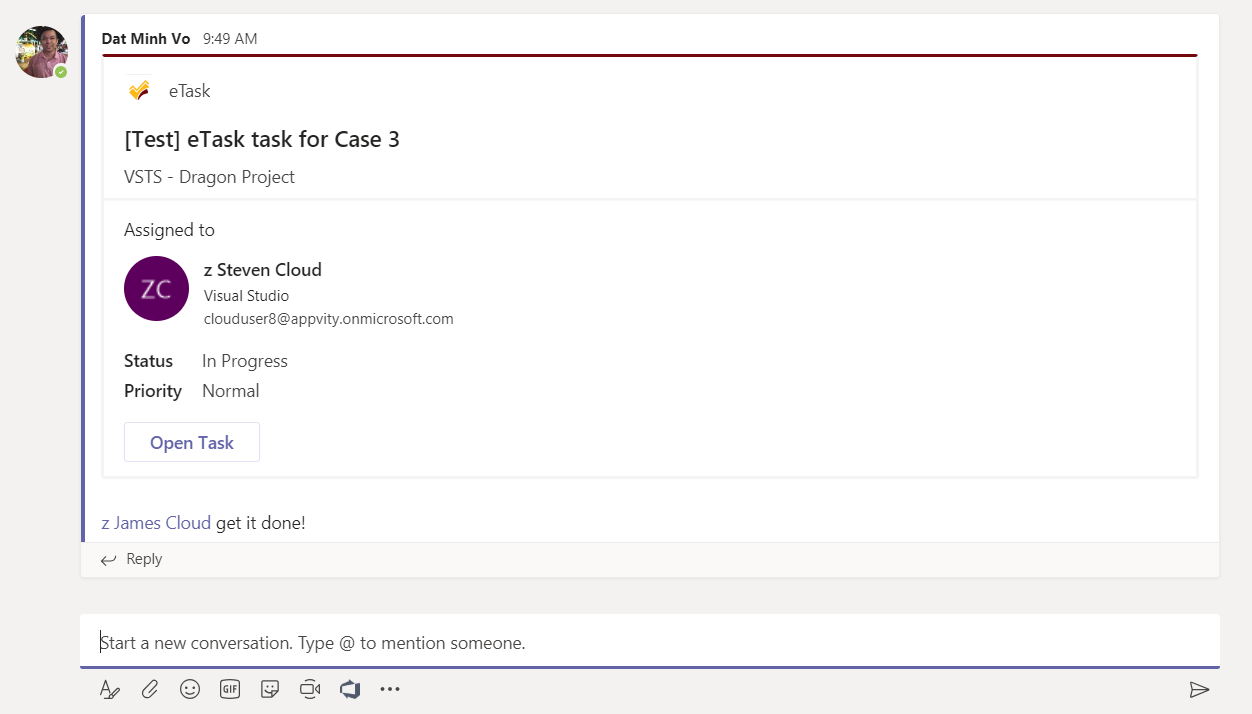
Find a bug
On the Posts tab, type “\@eTask” and choose eTask, and then click on “Find a Bug”.
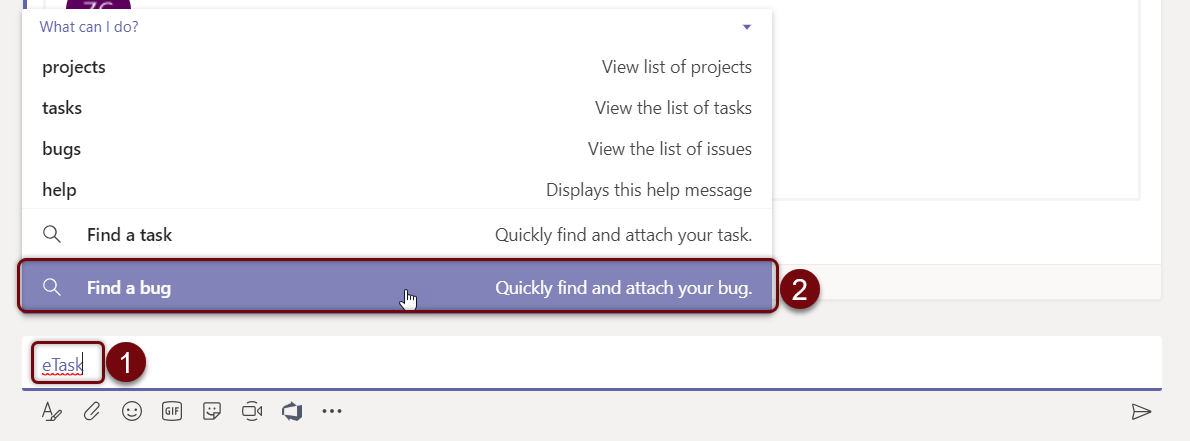
Use a keyword to find a bug.
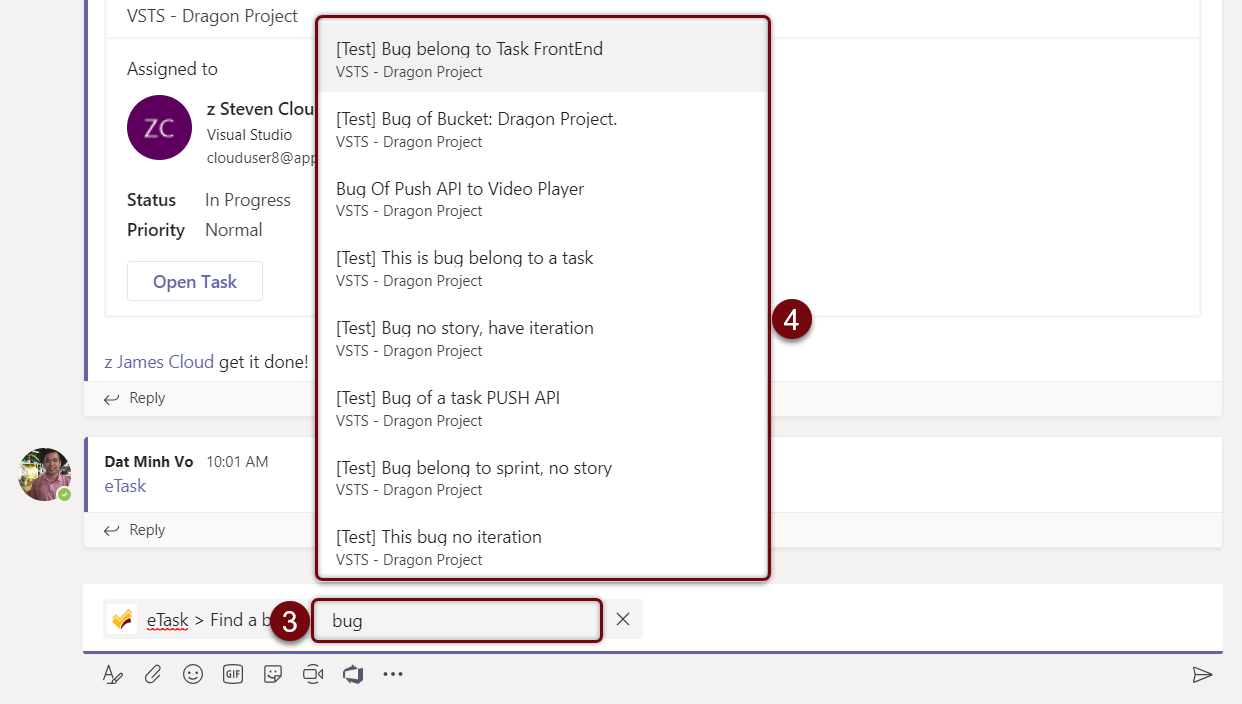
Bug will be embedded onto Posts tab.
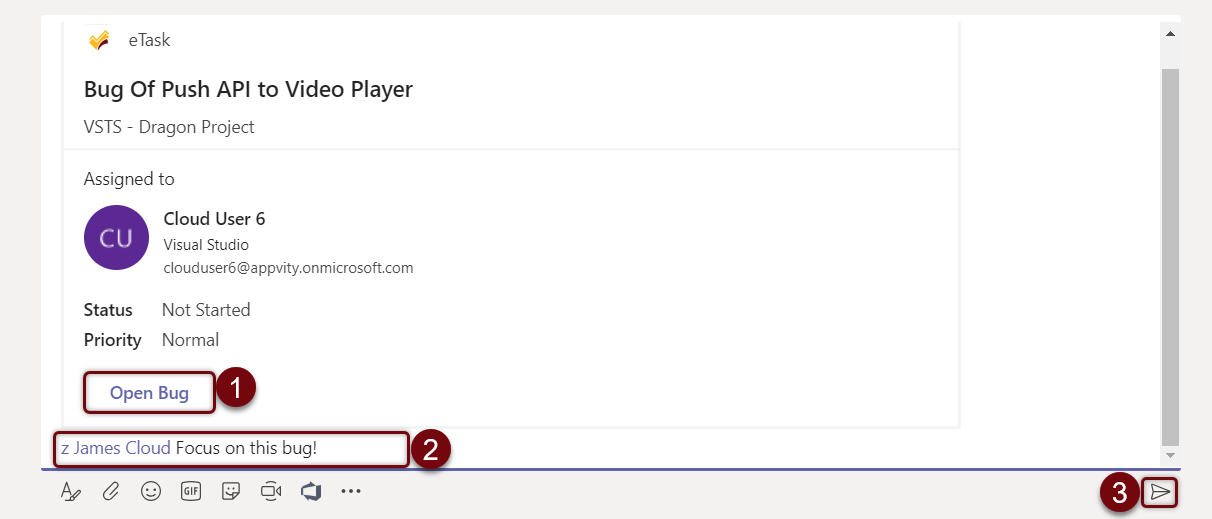
-
Open Bug: Microsoft Teams will be directed to that bug in eBug tab.
-
Attached message (Optional): Write a comment or tag someone to improve concentration.
Send: Send the whole message onto Posts task
Task
View tasks by properties
View recently added tasks:
View the list of recently added tasks.
Syntax: @etask˽tasks
| Example |
|---|
eTask tasks

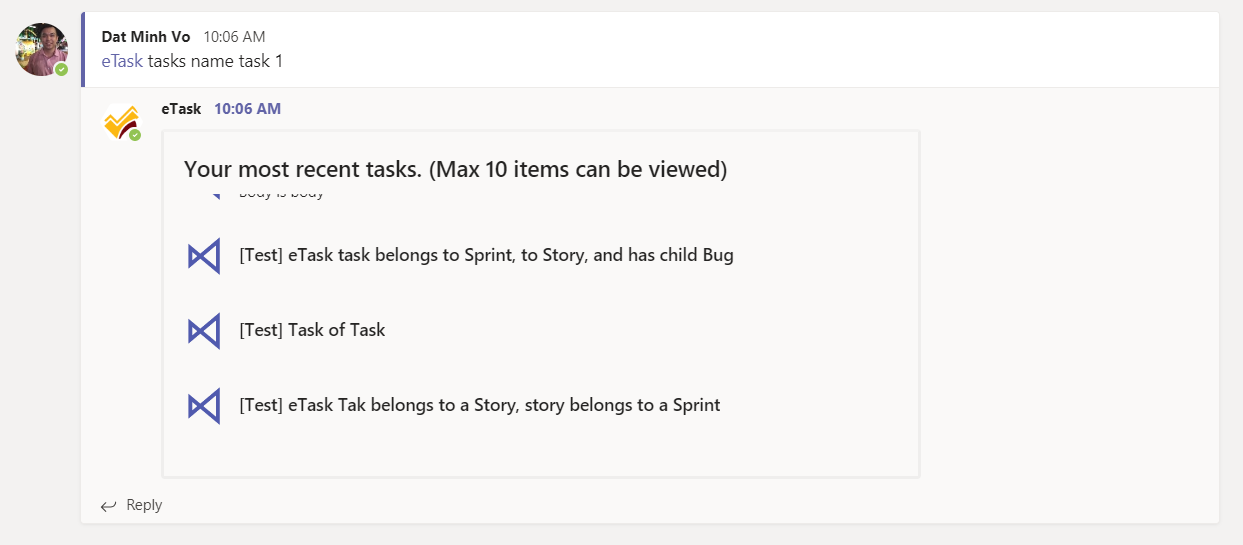
View tasks by title
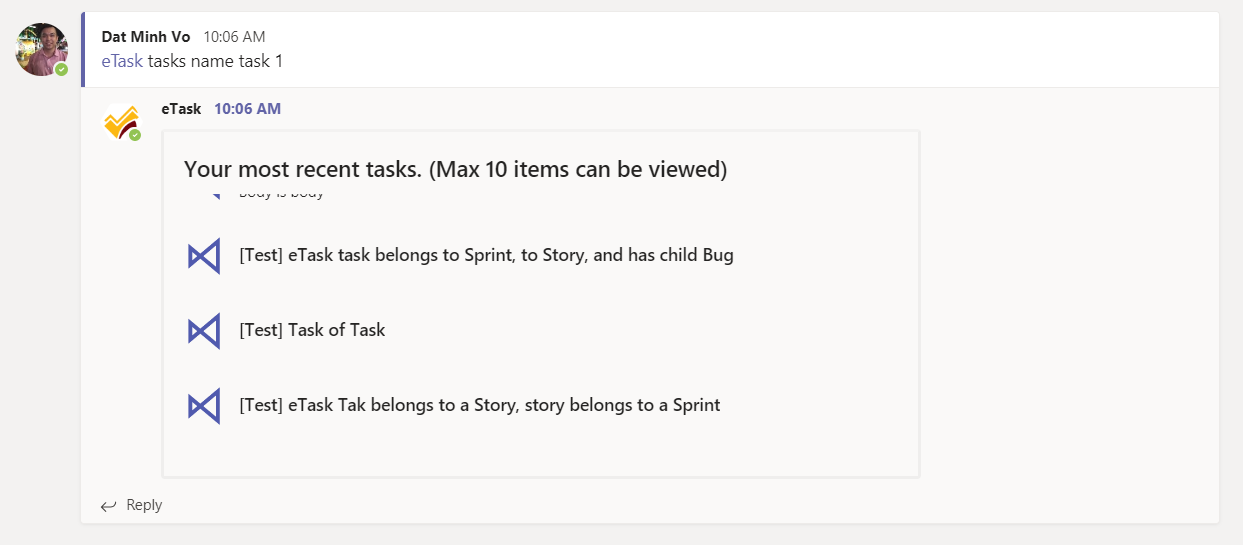
View the list of tasks which contains desired input.
Syntax: \@etask˽tasks/name/{title}
| Example |
|---|
eTask tasks/name/Task1

Result
View tasks that being assigned to user
View the list of tasks being assigned to me.
Syntax: \@etask˽tasks/my
| Example |
|---|
eTask tasks/my
View tasks by priority
View the list of tasks which has tasks priority = {input}
Syntax: \@eTask˽tasks/priority/{input}
| Example |
|---|
eTask tasks/priority/high
View tasks have specific status
View the list of tasks which has tasks status = {input}
Syntax: eTask˽tasks/status/{input}
| Example |
|---|
eTask tasks/status/in-progress
View tasks being assigned to someone
View the list of tasks which has tasks assignee = accountName.
Syntax: eTask˽tasks/assigned/{accountName}
| Example |
|---|
eTasktasks/assigned/alex@anadea
List of tasks assigned to Alex Burley.
Tasks actions
Clone a task
Clone a task which has same properties as task {id}.
Syntax: eTask˽task/clone/{id}
| Example |
|---|
eTask task/clone/123
New task will have the same properties as the task with ID is 123.
Synchronize eTask to Outlook
Synchronize “My tasks” from eTask to Outlook TODO list.
Syntax: eTask˽task/sync/outlook
Update a task with specific ID
Update status:
Change status of task {id} into {input}.
Syntax: eTask˽task/update/{id}/status/{input}
| Example |
|---|
eTask task/update/123/status/completed
Change status of task 123 into “Completed”.
Update assignee:
Change assignee of task {id} to {accountName}.
Syntax: eTask˽task/update/{id}/assigned/{accountName}
| Example |
|---|
eTask task/update/123/assigned/alex@anadea
Change assignee of task 123 to “Alex Burley”.
Update priority:
Change priority of task {id} to {input}.
Syntax: eTask˽task/update/{id}/priority/{input}
| Example |
|---|
eTask/task/update/123/priority/high
Change priority of task 123 to “high”.
Bug
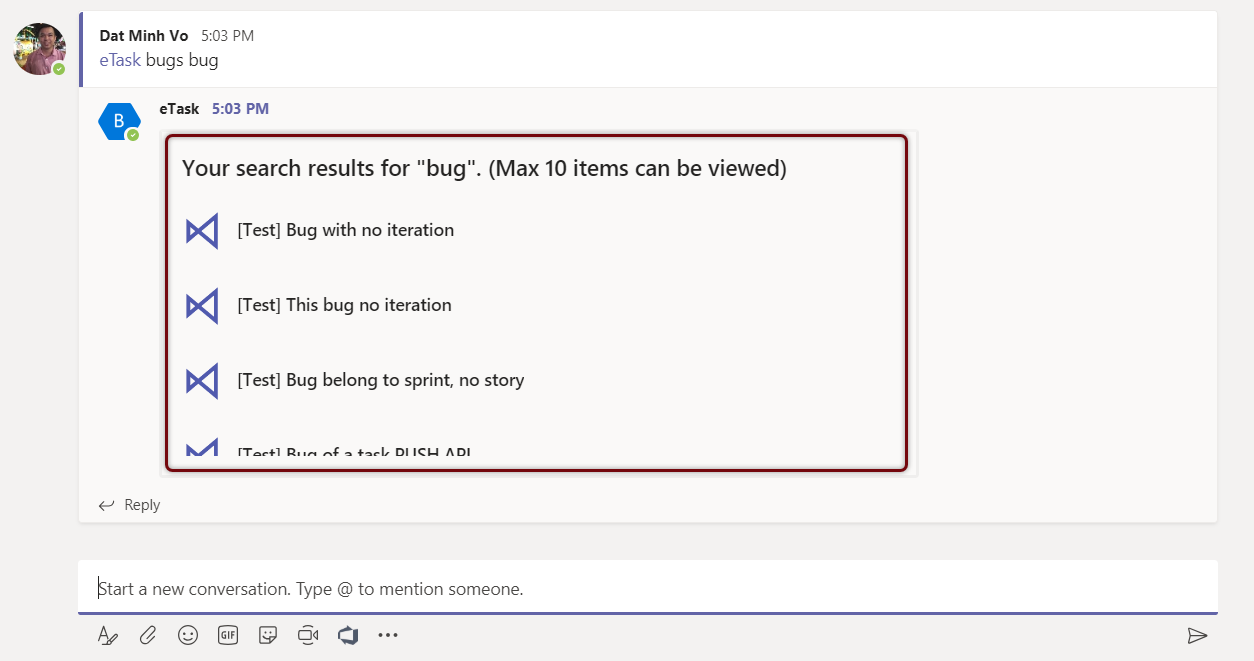
eBot will interact with eBug when choosing “bugs”.

-
Type in the command for eBot.
-
Bugs will be shown on Posts tab as shown below:
View bugs by properties
- View recently added bugs.
View the list of recently added bugs.
Syntax: \@etask˽bugs
| Example |
|---|
eTask bugs
- View bugs by title
View the list of bugs which contains desired input.
Syntax: \@etask˽bugs/name/{title}
| Example |
|---|
eTask bugs/name/Bug1
Result:
- View bugs that being assigned to user
View the list of bugs being assigned to me.
Syntax: \@etask˽bugs/my
| Example |
|---|
eTask bugs/my
- View bugs by priority
View the list of bugs which has bugs priority = {input}
Syntax: \@eTask˽bugs/priority/{input}
| Example |
|---|
eTask bugs/priority/high
- View bugs have specific status
View the list of bugs which has bugs status = {input}
Syntax: eTask˽bugs/status/{input}
| Example |
|---|
eTask bugs/status/in-progress.
- View bugs being assigned to someone
View the list of bugs which has bugs assignee = accountName.
Syntax: eTask˽bugs/assigned/{accountName}
| Example |
|---|
eTaskbugs/assigned/alex@anadea
List of bugs assigned to Alex Burley.
Bugs actions
- Clone a bug
Clone a bug which has same properties as bug {id}.
Syntax: eTask˽bug/clone/{id}
| Example |
|---|
eTask bug/clone/123
New bug will have the same properties as the bug with ID is 123.
- Synchronize eTask to Outlook
Synchronize “My bugs” from eTask to Outlook TODO list.
Syntax: eTask˽bug/sync/outlook
- Update a bug with specific ID
Update status:
Change status of bug {id} into {input}.
Syntax: eTask˽bug/update/{id}/status/{input}
| Example |
|---|
eTask bug/update/123/status/completed
Change status of bug 123 into “Completed”.
Update assignee:
Change assignee of bug {id} to {accountName}.
Syntax: eTask˽bug/update/{id}/assigned/{accountName}
| Example |
|---|
eTask bug/update/123/assigned/alex@anadea
Change assignee of bug 123 to “Alex Burley”.
Update priority:
Change priority of bug {id} to {input}.
Syntax: eTask˽bug/update/{id}/priority/{input}
| Example |
|---|
eTask/bug/update/123/priority/high.
Change priority of bug 123 to “high”.
Help
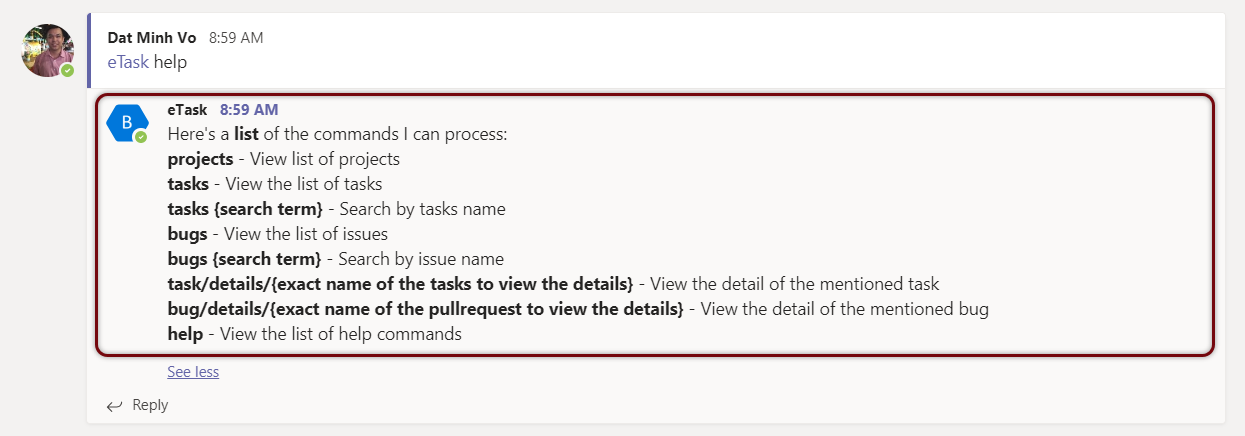
Type “help” to view a list of available commands for eBot.

-
Type:
“\@eTask”and choose eTask, then type “help”. -
Click “send” to command the bot.