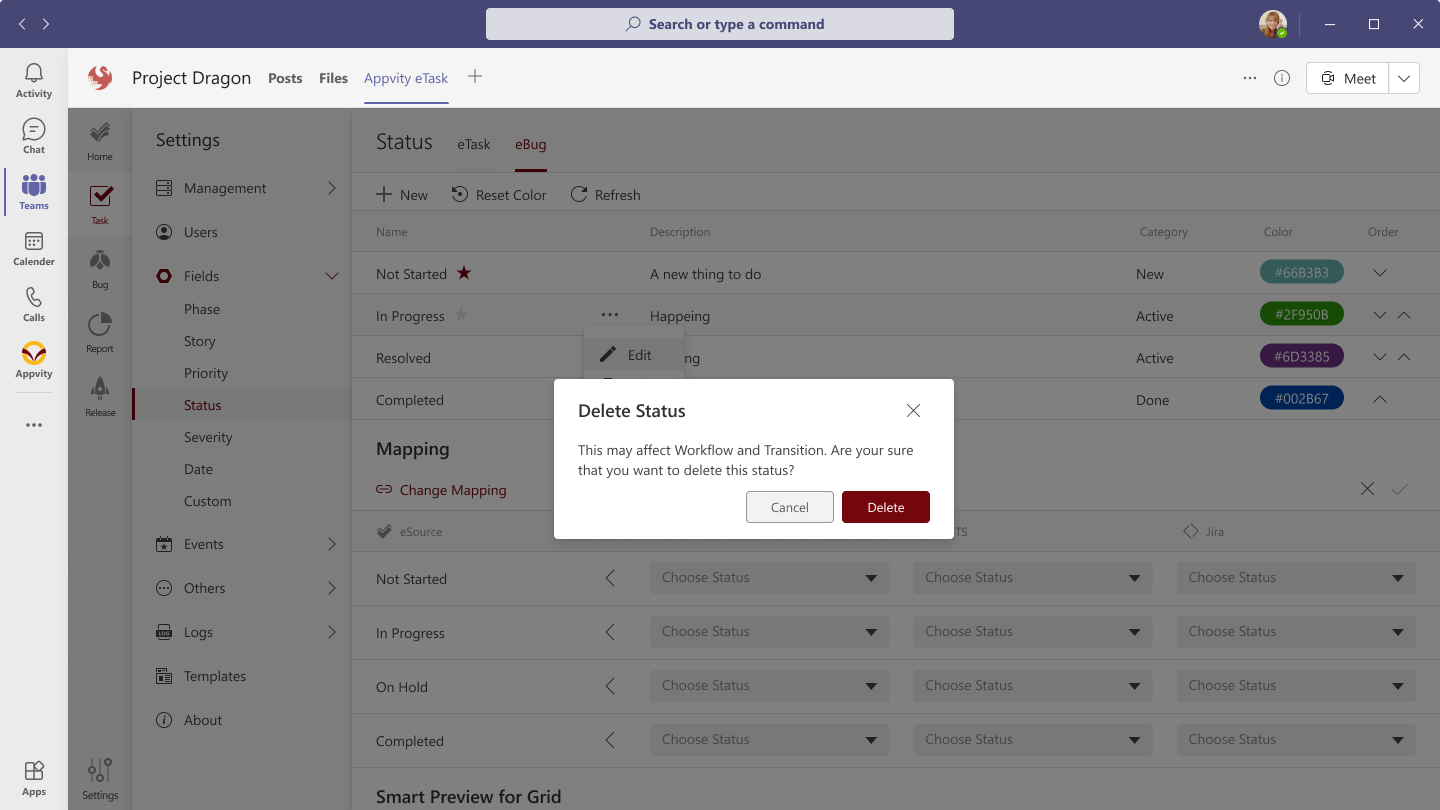
Status
eTask
By default, there are 5 statuses in eTask. You can customize and add a maximum of 8 Statuses for a channel.
-
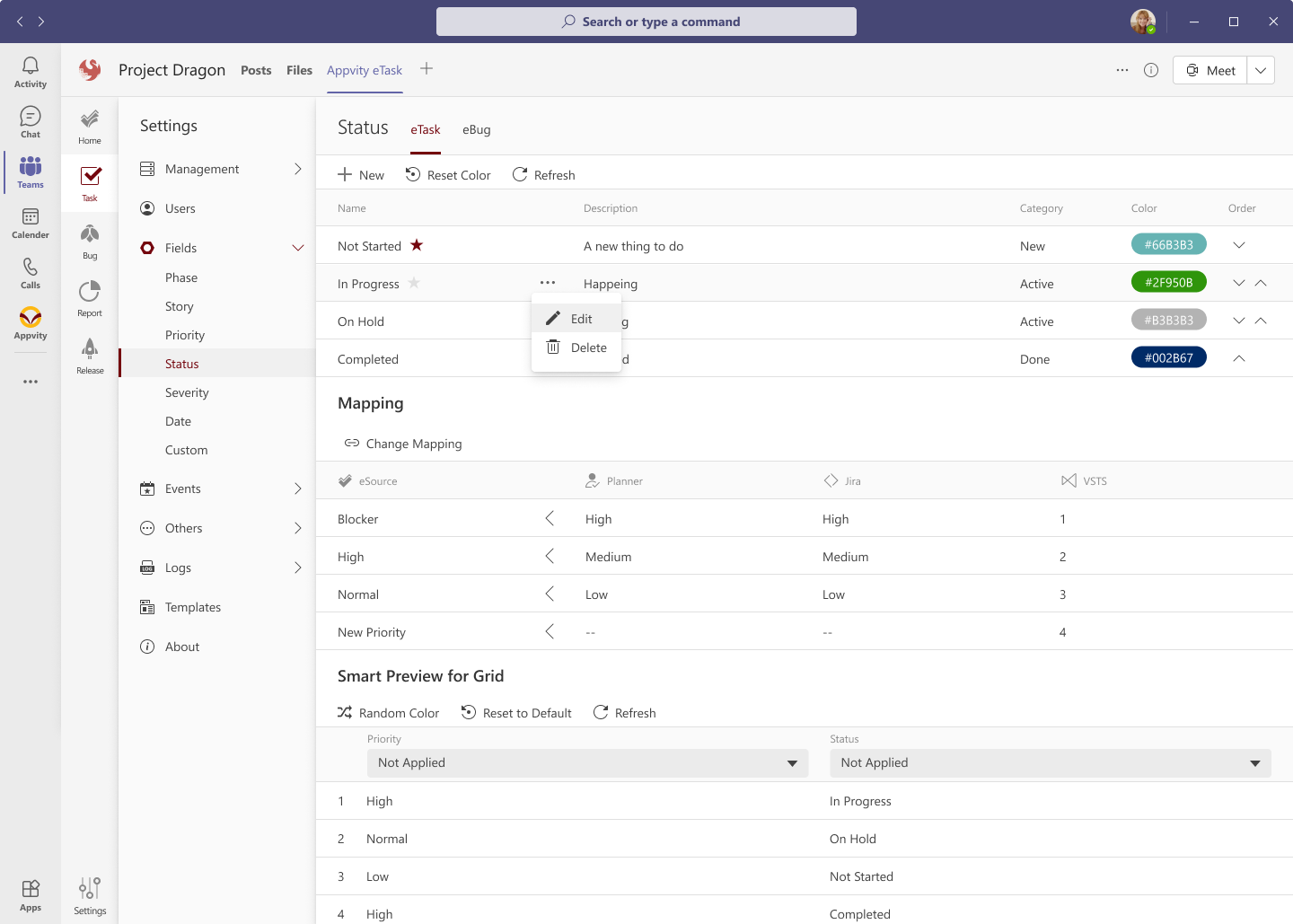
Color is auto-assigned to each status. User can assign a different color if they need.
-
If a status is selected as primary, it will be auto-assigned when user creates a new task.
Create new Status
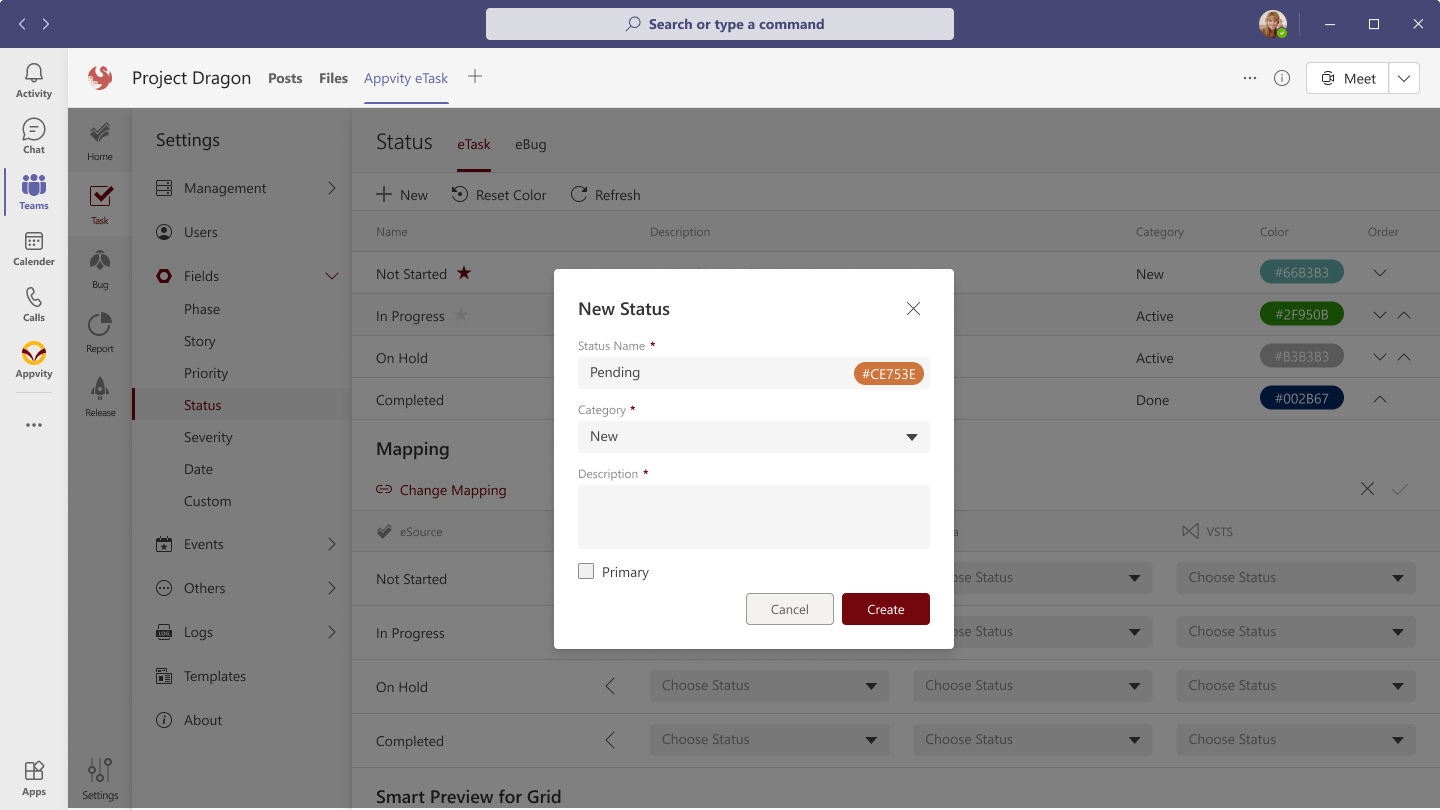
- Enter the status name.
- Select the color: The color will affect in dashboard, and charts.
- Select category: New, Active, or Done.
- Check primary: To be default value in task/bug form.
eTask - Mapping
eTask Status mapping currently supports Microsoft Planner, Azure DevOps, and Jira.
Click on "Change Mapping" button to open edit-mode for mapping.
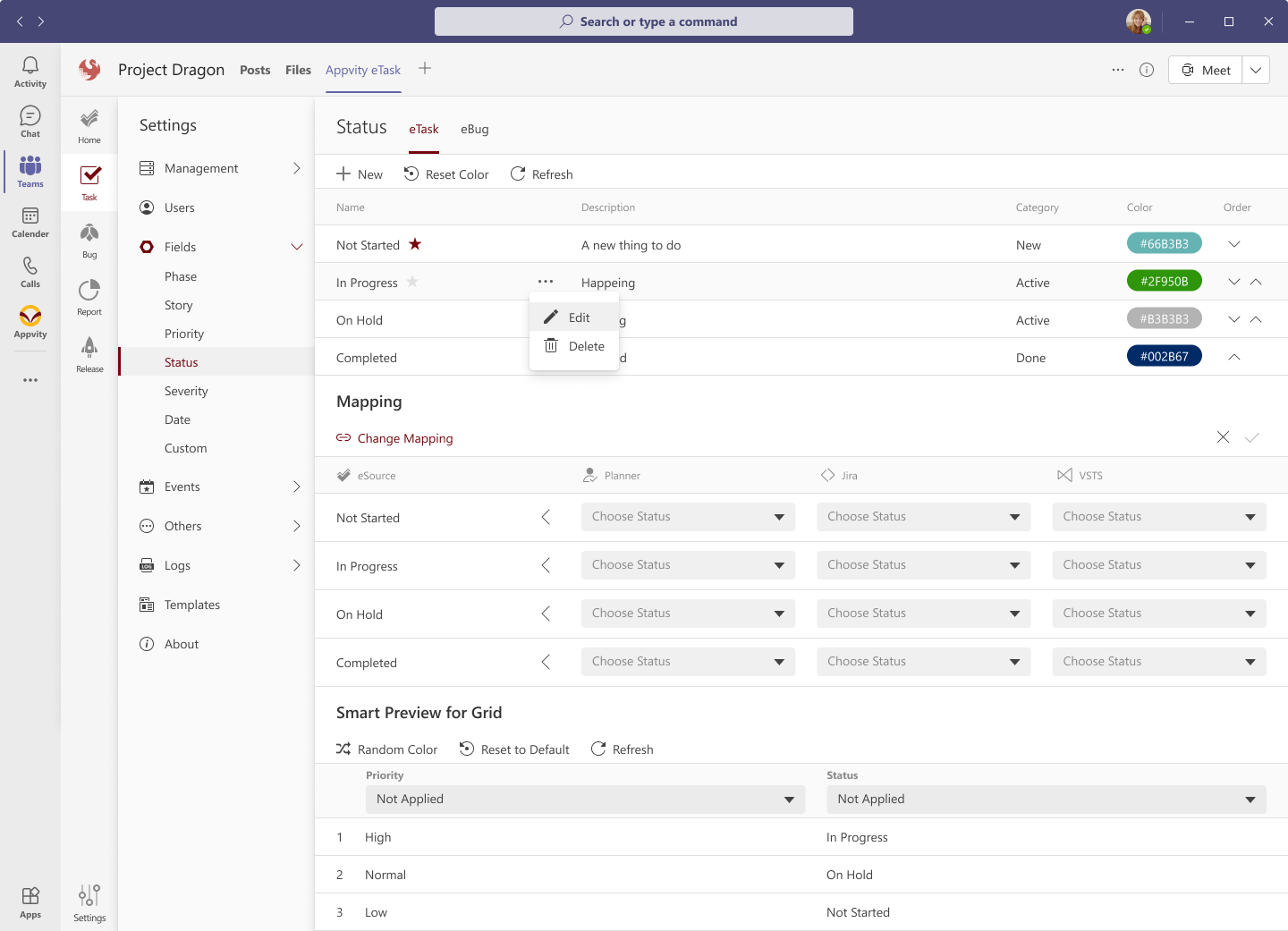
- Select and map the external source priority to start mapping.
If user selects None on the dropdown box, the box is removed.
eBug
This session behaves similar to eTask. By default, there are 4 statuses in eBug: New, Active, Resolved, and Closed.
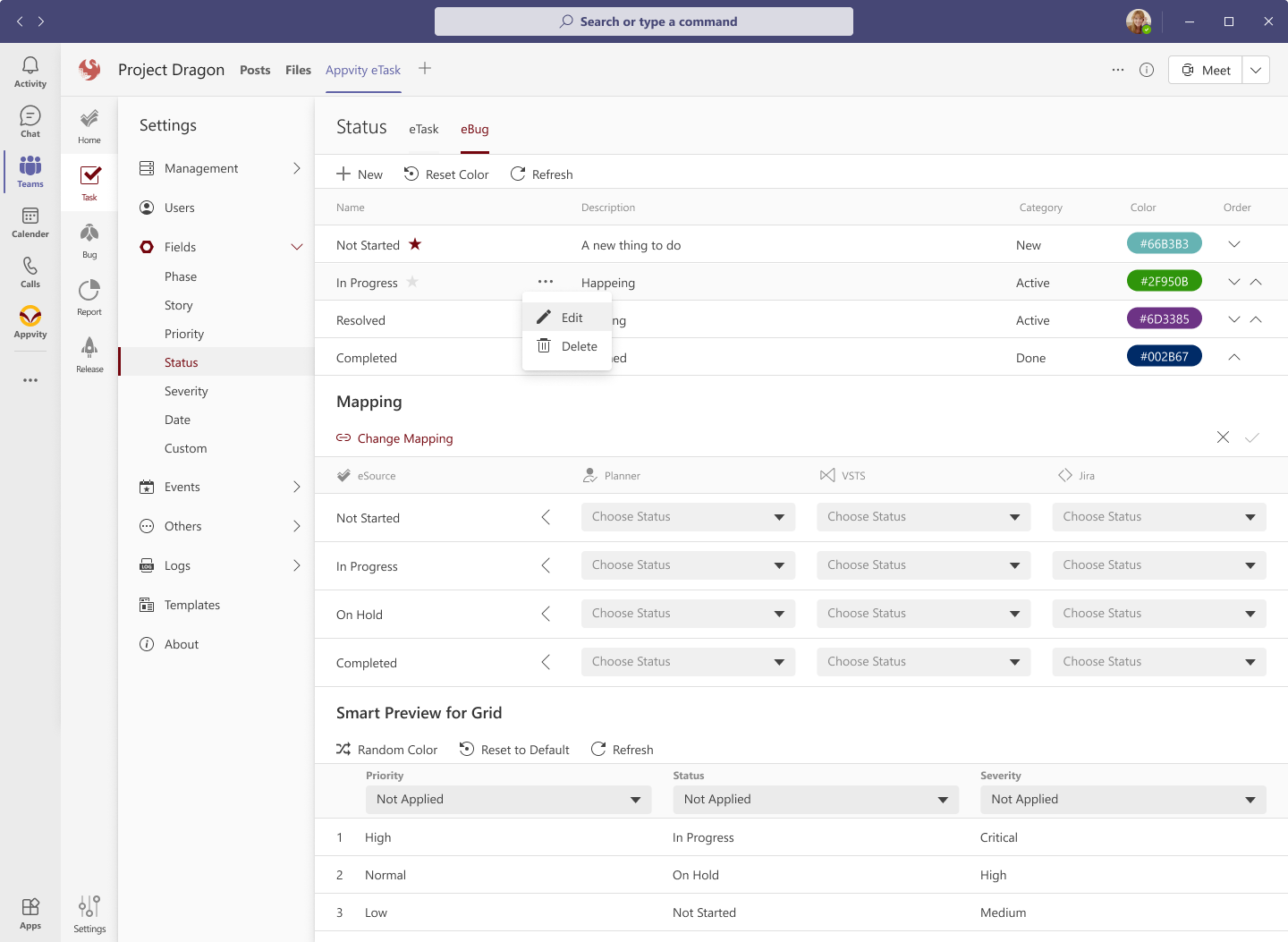
-
Color is auto-assigned to each status. User can assign a different color if they need.
-
If a status is selected as primary, it will be auto-assigned when user creates a new bug.
eBug - Mapping
eBug Status Mapping currently supports Azure DevOps, and Jira.
Applied as same as eTask form above.
Delete a Status
From action menu, select "Delete" to delete the status permanently:
- This action cannot be undo.
- If the status is deleted, the task/bug with that priority will be moved to Wanderer View.
- Delete with awareness.