Task Views
For the tasks, there are 4 default groups for the views.
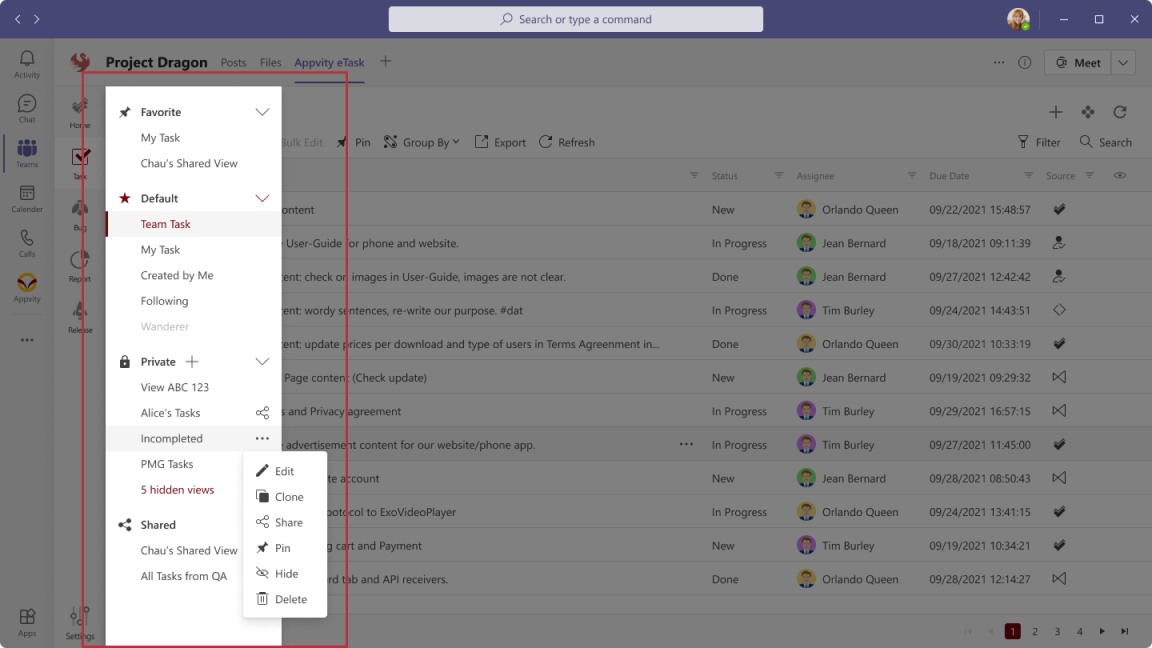
Default View
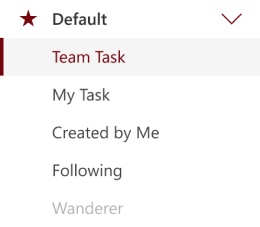
Finding your needs from Appvity eTask's default views. eTask optimize your access to the daily works by providing useful views:
- Team Task - Getting all active tasks of channel.
- My Task – Active tasks being assigned to current user.
- Created by Me – All active tasks being created by current user.
- Pinned (new) – All tasks being pinned by current user.
- Hint: You can drag & drop to change order of pinned items.
- Wanderer – invalid tasks (the Wanderer view will be shown when there is at least 1 existing invalid task in the channel, else your project is well-configured in synchronization).
Private View
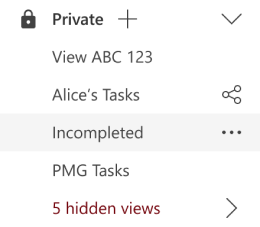
- Click “+” to create a private view.
- Private view action:
- After sharing a private view to other team members, it will show icon

- Hover on the private view to show Action menu.
- After sharing a private view to other team members, it will show icon
- If there are many views, you can hide them by clicking on "Hide" on action menu. - Hidden view – can be shown again when clicked “Unhide”. For more detail, access to this - replace link later.
Shared View

- When someone shared their view with you within the channel, their view will be shown in this shared view group.
- Remove the shared view by clicking "Remove" on action menu.
Favorite View

- Adding a private view, shared view to favorite group to prioritize your needed views. The latest added view will be on top, be aware to add favorite!


