Briefcase
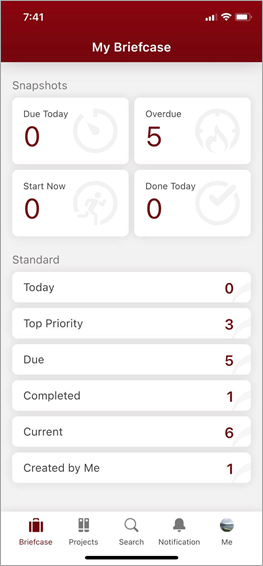
My Briefcase is a personal view showing statistic of tasks’ status that belongs to the logged-in user.
Snapshots
Snapshot section provides the statistic of the following criteria:
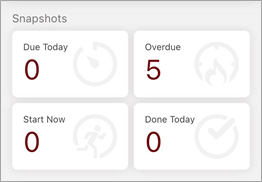
- Due Today: Task was due today.
- Overdue: Task was overdue.
- Start Now: Task which has start date is today.
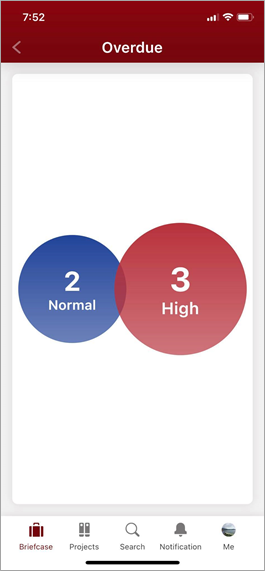
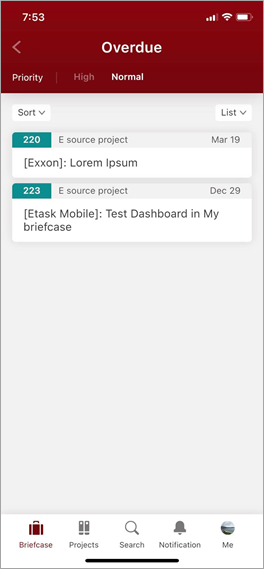
- Done Today: Task was completed today. The number for each cell represents how many tasks the criteria have. When clicked on a tile, the bubble chart of the selected criteria will be shown. Then clicking on a bubble to show the detailed list of task of its.
Standard
There are 6 standard criteria which are set as default:
- Today: Task is not completed and needs action today.
- Top priority: Task have high priority and not completed.
- Due: Task was due and not completed.
- Current: Task is happening or starting from a short time ago.
- Completed: Task were completed.
- Created by me: Task created by this user login.
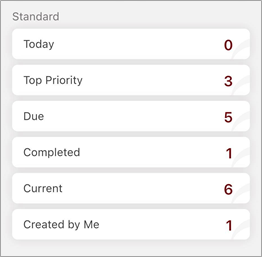
The number for each cell represents how many tasks the criteria have.
Work Item List
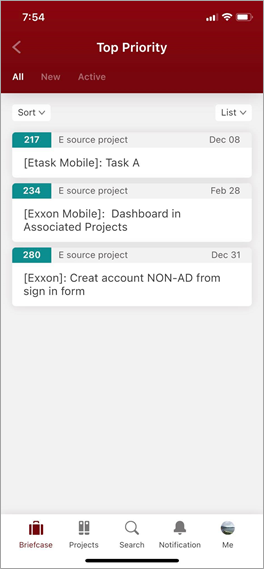
Work item list will display all the items which are related to the selected criteria before that. There are some properties of the work item will be shown:
- ID.
- Title.
- Team name > Project name.
- Due date (it will hide in the Completed view or has no data).
Work Item Detail
Tapping on a task name to open the task detail pane. The detail pane allows editing on properties or making a comment on the task.
- Overview
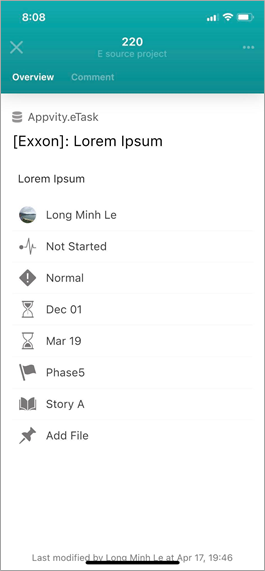
There are properties will be shown and they are able to be edited:
- Title: Show information of title.
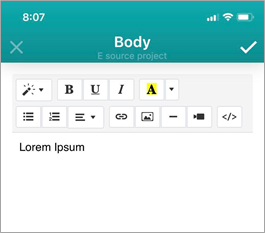
- Body: Show information of body of this task. If task has photo in body, it will also show in mobile.
- Assignee: For the source VSTS or Jira source, eTask support single assignee picker. For eSource or Planner source, user can pick multiple assignees.
- If user doesn’t pick any assignee, label will show “No Assignee”.
- Status: Loading statuses in Settings.
- Priority: Loading priority in Settings.
- Start Date.
- Due Date.
- Phase: Loading Phases of the selected Source.
- Story: Loading Stories of the selected Source.
- Attachment:
- When user clicks on the “Add file”, popup will display with 3 options:
- Photo Library: Access library and allow user to choose the photo.
- Camera: Open camera and the photo is taken will be attach on task.
- Document: Access library and allow user to choose the file document.
- When there is an attachment exists, click and hold the attachment file to:
- Download: Open SharePoint web and download the file (if the web browser is authenticated with O365).
- Delete: a pop-up confirm will appear, choose “Yes” to remove the file from task, choose “No” to cancel action.
- When user clicks on the “Add file”, popup will display with 3 options:
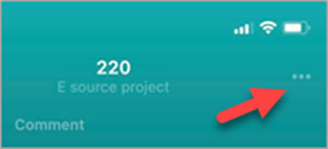
We have “Quick Actions” on the upper right corner button:
- Copy Link.
- Share With Message.
- Comment Section
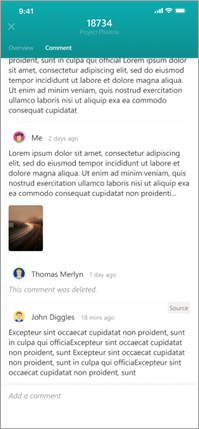
- Loading all comments of the task with the following component:
- Avatar and username.
- Comment date.
- Content of comment:
- Showing all comments of the task with images.
- Currently eTask supports plain text and does not support images or rich text in mobile.
- If there is a deleted comment, eTask will alert user with text “This comment was deleted”.
- If the comment is from external source, eTask will mark it with text “Source”.


